Set Layer & Draw Line in SolidWorks Drawing
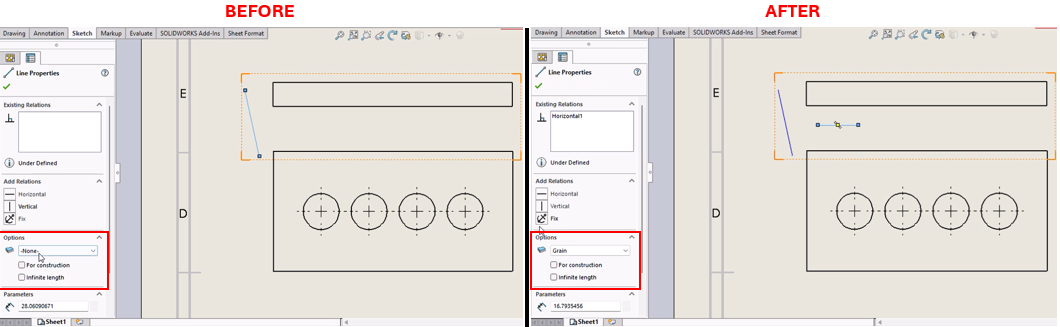
Description
This macro sets the specified layer as the current layer in the active SolidWorks drawing document and adds a sketched line on that layer. It automates the process of layer management and drawing creation, ensuring that all subsequent sketched entities are added to the specified layer. This is particularly useful for organizing different sketch entities in separate layers.
System Requirements
- SolidWorks Version: SolidWorks 2014 or newer
- Operating System: Windows 7 or later
Pre-Conditions
Note
- The active document must be a drawing document.
- The specified layer (
Grain) must already exist in the active drawing.
Results
Note
- The specified layer (
Grain) will be set as the active layer. - A new sketch line will be created on the specified layer at the given coordinates.
VBA Macro Code
' Disclaimer:
' The code provided should be used at your own risk.
' Blue Byte Systems Inc. assumes no responsibility for any issues or damages that may arise from using or modifying this code.
' For more information, visit [Blue Byte Systems Inc.](https://bluebyte.biz).

Option Explicit
' Define necessary variables for SolidWorks application, drawing, and layer manager
Dim swApp As Object                 ' Application object (SldWorks)
Dim pDrawing As Object              ' Active drawing document object
Dim pLayerMgr As Object             ' Layer manager object
Dim pSketchSegment1 As Object       ' Sketch segment object (line)

Sub main()

    ' Initialize SolidWorks application
    Set swApp = Application.SldWorks

    ' Get the active drawing document
    Set pDrawing = swApp.ActiveDoc

    ' Check if the active document is a drawing
    If pDrawing Is Nothing Then
        swApp.SendMsgToUser "No active drawing document found. Please open a drawing and try again."
        Exit Sub
    End If

    ' Get LayerMgr object from the active drawing document
    Set pLayerMgr = pDrawing.GetLayerManager

    ' Check if LayerMgr was obtained successfully
    If pLayerMgr Is Nothing Then
        swApp.SendMsgToUser "Failed to get Layer Manager. Make sure you are in a drawing document."
        Exit Sub
    End If

    ' Set "Grain" as the current layer
    Dim res As Boolean
    res = pLayerMgr.SetCurrentLayer("Grain")

    ' Check if the layer activation was successful
    If res = False Then
        swApp.SendMsgToUser "Error activating the layer 'Grain'. Please ensure the layer exists in the drawing."
        Exit Sub
    End If

    ' Enable adding objects to the database without displaying them
    pDrawing.SetAddToDB True

    ' Create a line sketch on the active layer
    Set pSketchSegment1 = pDrawing.CreateLine2(0.15, 0.25, 0, 0.45, 0.25, 0)

    ' Check if the line was created successfully
    If pSketchSegment1 Is Nothing Then
        swApp.SendMsgToUser "Failed to create the sketch line. Please check the sketch coordinates."
        pDrawing.SetAddToDB False
        Exit Sub
    End If

    ' Disable adding objects to the database
    pDrawing.SetAddToDB False

    ' Clear all selections in the drawing
    pDrawing.ClearSelection

    ' Notify user of successful operation
    swApp.SendMsgToUser "Layer set and line created successfully on the active layer."

End Sub
Macro
You can download the macro from here
Customization
Need to modify the macro to meet specific requirements or integrate it with other processes? We provide custom macro development tailored to your needs. Contact us.