Rebuild & Save All Drawings in a Directory as PDF
Description
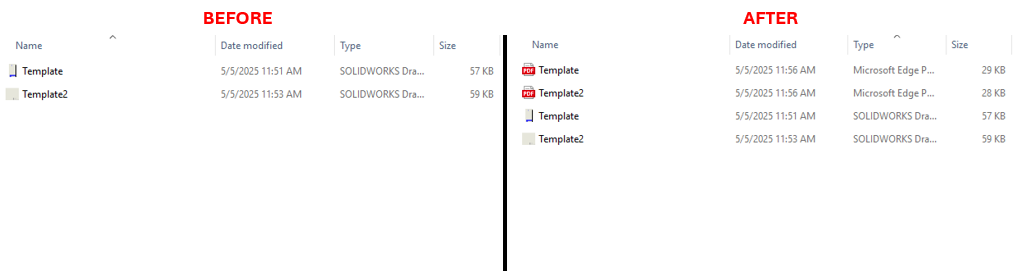
This macro rebuilds all SolidWorks drawing files (.SLDDRW) in a specified directory and saves them as PDF files in the same location. It automates the process of batch exporting drawings to PDFs, making it ideal for users who need to handle large quantities of files efficiently.
System Requirements
- SolidWorks Version: SolidWorks 2014 or newer
- Operating System: Windows 10 or later
- Excel Version: Microsoft Excel 2010 or later (for Excel integration features)
Pre-Conditions
Note
- The folder containing the SolidWorks drawings must be specified in the code.
- SolidWorks must be installed and running on the machine.
Results
Note
- PDF files will be saved in the same location as the SolidWorks drawings.
- The original drawing files will remain unchanged.
VBA Macro Code
' Disclaimer:
' The code provided should be used at your own risk.
' Blue Byte Systems Inc. assumes no responsibility for any issues or damages that may arise from using or modifying this code.
' For more information, visit [Blue Byte Systems Inc.](https://bluebyte.biz).

Option Explicit

' Define the main variables for SolidWorks application and model
Dim swApp As SldWorks.SldWorks
Dim swModel As ModelDoc2
Dim swFilename As String
Dim swRet As Boolean
Dim swErrors As Long
Dim swWarnings As Long
Dim swResponse As String

' Main subroutine
Sub Main()

    ' Initialize SolidWorks application
    Set swApp = Application.SldWorks

    ' Specify the folder location containing the SolidWorks drawings
    RebuildAndSaveAllDrawingsAsPDF "C:\SOLIDWORKS", ".SLDDRW", True

End Sub

' Subroutine to rebuild drawing and save as PDF
Sub RebuildAndSaveAllDrawingsAsPDF(swFolder As String, swExt As String, swSilent As Boolean)

    Dim swDocTypeLong As Long

    ' Ensure the file extension is in uppercase
    swExt = UCase$(swExt)
    swDocTypeLong = Switch(swExt = ".SLDDRW", swDocDRAWING, True, -1)

    ' If the file type is not supported, exit the subroutine
    If swDocTypeLong = -1 Then
        Exit Sub
    End If

    ' Change directory to the folder
    ChDir (swFolder)

    ' Get the first file in the folder
    swResponse = Dir(swFolder)
    Do Until swResponse = ""

        swFilename = swFolder & swResponse

        ' Check if the file extension matches
        If Right(UCase$(swResponse), 7) = swExt Then

            ' Open the SolidWorks document
            Set swModel = swApp.OpenDoc6(swFilename, swDocTypeLong, swOpenDocOptions_Silent, "", swErrors, swWarnings)

            ' Rebuild the drawing if it's a drawing file
            If swDocTypeLong <> swDocDRAWING Then
                swModel.ShowNamedView2 "*Isometric", -1
            End If

            ' Define file path variables
            Dim swFilePath As String
            Dim swPathSize As Long
            Dim swPathNoExtension As String
            Dim swNewFilePath As String

            swFilePath = swModel.GetPathName
            swPathSize = Strings.Len(swFilePath)
            swPathNoExtension = Strings.Left(swFilePath, swPathSize - 6)
            swNewFilePath = swPathNoExtension & "PDF"

            ' Save the document as PDF
            swRet = swModel.SaveAs3(swNewFilePath, 0, 0)

            ' Close the document
            swApp.CloseDoc swModel.GetTitle

        End If

        ' Get the next file in the folder
        swResponse = Dir
    Loop

End Sub
Macro
You can download the macro from here
Customization
Need to modify the macro to meet specific requirements or integrate it with other processes? We provide custom macro development tailored to your needs. Contact us.