Export Sheet Metal to DXF in SOLIDWORKS
Macro Description
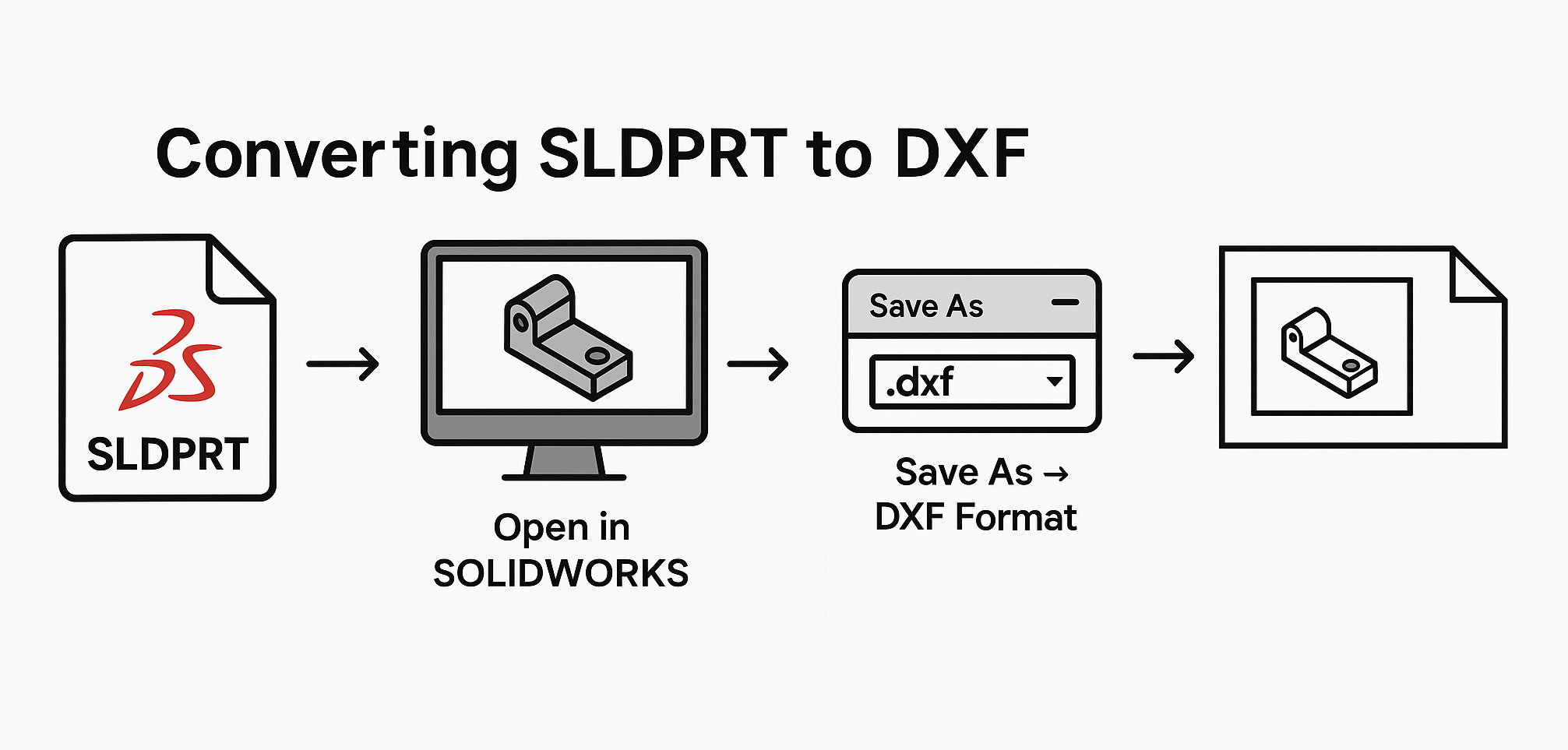
This VBA macro automates the process of exporting all sheet metal parts from a SOLIDWORKS assembly to DXF files. The macro loops through each component in the assembly, checks if it's a sheet metal part, and exports the flat pattern of the part to a DXF file. The macro ensures that duplicate parts are not processed more than once, preventing redundant exports.
VBA Macro Code
Option Explicit
' ********************************************************************
' DISCLAIMER:
' This code is provided as-is with no warranty or liability by
' Blue Byte Systems Inc. The company assumes no responsibility for
' any issues arising from the use of this code in production.
' ********************************************************************

' Enum for Sheet Metal export options
Enum SheetMetalOptions_e
    ExportFlatPatternGeometry = 1
    IncludeHiddenEdges = 2
    ExportBendLines = 4
    IncludeSketches = 8
    MergeCoplanarFaces = 16
    ExportLibraryFeatures = 32
    ExportFormingTools = 64
    ExportBoundingBox = 2048
End Enum

' solidworks app variable
Dim swApp As SldWorks.SldWorks
Dim swModelDoc As ModelDoc2
Dim swAssemblyDoc As AssemblyDoc
Dim swComponents As Variant
Dim swComponent As Component2
Dim swComponentIterator
Dim processedFiles() As String

Sub Main()


ReDim processedFiles(0)

processedFiles(0) = ""

 Set swApp = Application.SldWorks

 Set swModelDoc = swApp.ActiveDoc

 Set swAssemblyDoc = swModelDoc


 swComponents = swAssemblyDoc.GetComponents(False)

 For Each swComponentIterator In swComponents

  Set swComponent = swComponentIterator

  Dim swComponentModelDoc As ModelDoc2

  Set swComponentModelDoc = swComponent.GetModelDoc2

  If Not swComponentModelDoc Is Nothing Then

   If ExistsInProcessedFiles(processedFiles, swComponentModelDoc.GetPathName()) = False Then

   addItemToProcessedFiles processedFiles, swComponentModelDoc.GetPathName()

   PrintDXF swComponentModelDoc


   End If

  End If


 Next swComponentIterator

End Sub


Function ExistsInProcessedFiles(ByRef arr() As String, fileName As Variant) As Boolean


Dim i As Long

For i = LBound(arr) To UBound(arr)

 If arr(i) = fileName Then

  ExistsInProcessedFiles = True

  Exit Function

  End If

Next i

ExistsInProcessedFiles = False

End Function


Sub PrintDXF(ByRef swmodel As ModelDoc2)

If swmodel.GetType() = swDocumentTypes_e.swDocPART Then

 Dim swPart As PartDoc

 Set swPart = swmodel

 Dim modelPath As String

 modelPath = swmodel.GetPathName

 Dim outPath As String

 outPath = Left(modelPath, Len(modelPath) - 6)

 outPath = outPath + "dxf"

 swmodel.Visible = True

 Dim saveDXF As Boolean

 saveDXF = swPart.ExportToDWG2(outPath, modelPath, swConst.swExportToDWG_e.swExportToDWG_ExportSheetMetal, True, vbEmpty, False, False, SheetMetalOptions_e.ExportFlatPatternGeometry + SheetMetalOptions_e.ExportFlatPatternGeometry + SheetMetalOptions_e.ExportFlatPatternGeometry + SheetMetalOptions_e.ExportBendLines, vbEmpty)

 If saveDXF Then

  Debug.Print swmodel.GetTitle() & " saved"


 Else
  Debug.Print swmodel.GetTitle() & " failed to save"

 End If

 swmodel.Visible = False

End If

End Sub


Public Sub addItemToProcessedFiles(ByRef arr() As String, ByVal processedFile As String)

Dim arrLength As Long

arrLength = UBound(arr)

If arrLength < 0 Then

ReDim arr(0)

arr(0) = processedFile

Else

ReDim Preserve arr(arrLength + 1)

arr(arrLength + 1) = processedFile

End If

End Sub
System Requirements
To run this VBA macro, ensure that your system meets the following requirements:
- SOLIDWORKS Version: SOLIDWORKS 2017 or later
- VBA Environment: Pre-installed with SOLIDWORKS (Access via Tools > Macro > New or Edit)
- Operating System: Windows 7, 8, 10, or later
Note
Pre-conditions
- The active document must be an assembly (.sldasm) in SOLIDWORKS.
- Ensure that the components contain valid sheet metal parts for export.
Note
Post-conditions The flat pattern of each sheet metal part will be exported as a DXF file.
Macro
You can download the macro from here
Customization
Need to modify the macro to meet specific requirements or integrate it with other processes? We provide custom macro development tailored to your needs. Contact us.